Instantly Rewrite Any Text on Your Mac Using Velo

Have you ever been reading an article, drafting an email, or looking at a message and thought, “This is almost right, but it needs a little polish”? Your first instinct is to highlight the text. But what if highlighting it could actually fix it for you?
With Velo, that's exactly what happens. You can highlight any text in any application—a web browser, your code editor, an email, a document—double-tap the Option key, and an AI will instantly rewrite it. No copying, no pasting, no switching to another tab to open a chatbot. It's called Double-Tap Rewrite, and for many Velo users, it's the one feature that transforms how they work every day. Here's how to set it up, start using it, and get the most out of it.
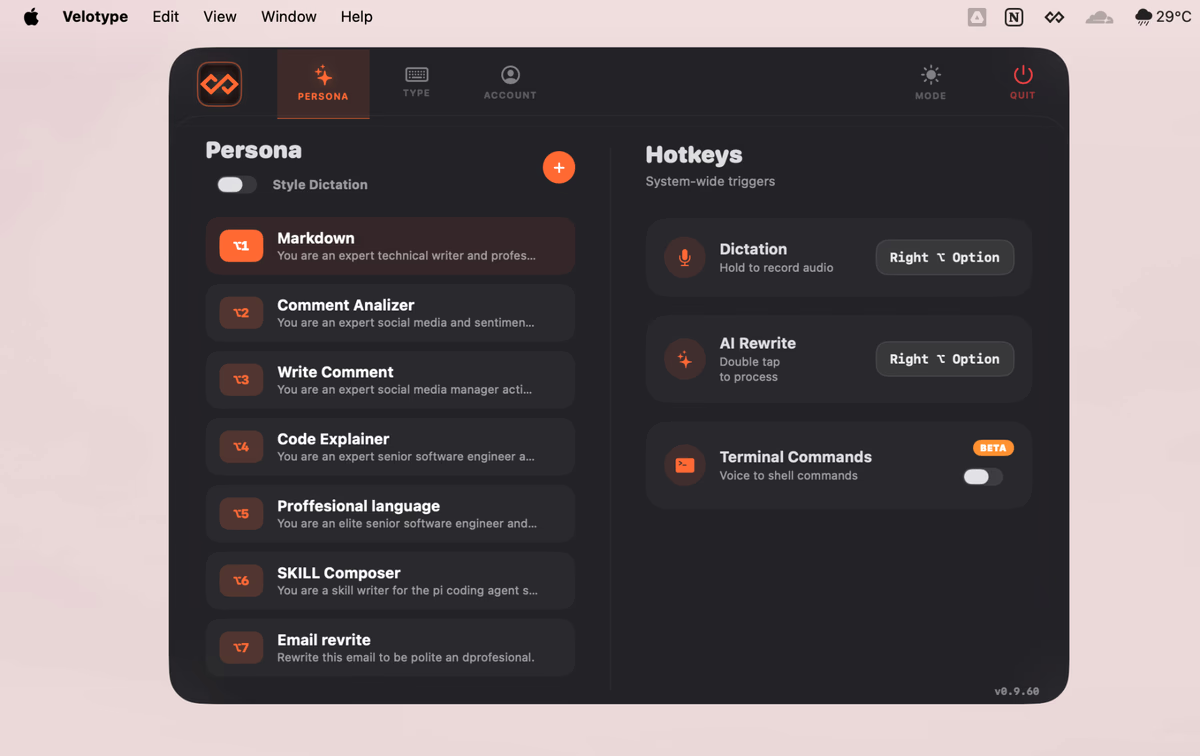
What Is Double-Tap Rewrite?
Double-Tap Rewrite lets you send any text you've selected on your Mac to an AI for an instant makeover. The improved version, replaces the original text right where you're working. You never have to leave the app you're in.
The whole process is as simple as it sounds: Select → Double-tap → Done.
Step 1: Install Velo and Grant Permissions
If you haven't installed Velo yet, here's how to get started:
-
Go to velotype.app and download the free app.
-
Open the .dmg file and drag Velo into your Applications folder.
-
The first time you open it, right-click on Velo in your Applications folder, choose Open, and then click Open again. This is a standard one-time step for independent Mac apps.
-
Your Mac will then ask for three permissions. Granting all three is essential for Velo to work its magic:
-
Microphone: Needed so you can dictate text.
-
Accessibility: Needed so Velo can type the rewritten text into other apps for you.
-
Input Monitoring: Needed so Velo can detect your Option key double-tap anywhere on your system.
You’ll need to enter your Mac password to enable Accessibility and Input Monitoring. This is a standard macOS security step for any tool that works system-wide.
Step 2: Connect an AI Provider
Double-Tap Rewrite needs to connect to an AI to process your text. You have two simple options:
Option A: Start for Free with Groq Velo's free Essential plan connects to Groq, a fast AI provider. You don’t need a credit card. Simply sign up for a free Groq API key (it comes with generous free credits), and you’re good to go.
Option B: Bring Your Own Key If you already have an account with AI providers like OpenAI (ChatGPT), Anthropic (Claude), or others, you can connect them in Velo's Account → Connectivity vault. You pay them directly for what you use—usually just pennies a week.
Once you've added at least one provider, Velo is ready to rewrite.
Step 3: Use Double-Tap Rewrite for the First Time
Let's walk through a real example.
Open any application—Safari, Notes, Apple Mail, Messages. It doesn’t matter which one.
-
Select Persona you want to use.
-
Select text and Double-tap the Option (⌥) key.
-
Scratchpad will popup with rewriten tex. Yo uhave now two options to rewrite again or to copy output.
Step 4: Customize How Your Text Is Rewritten
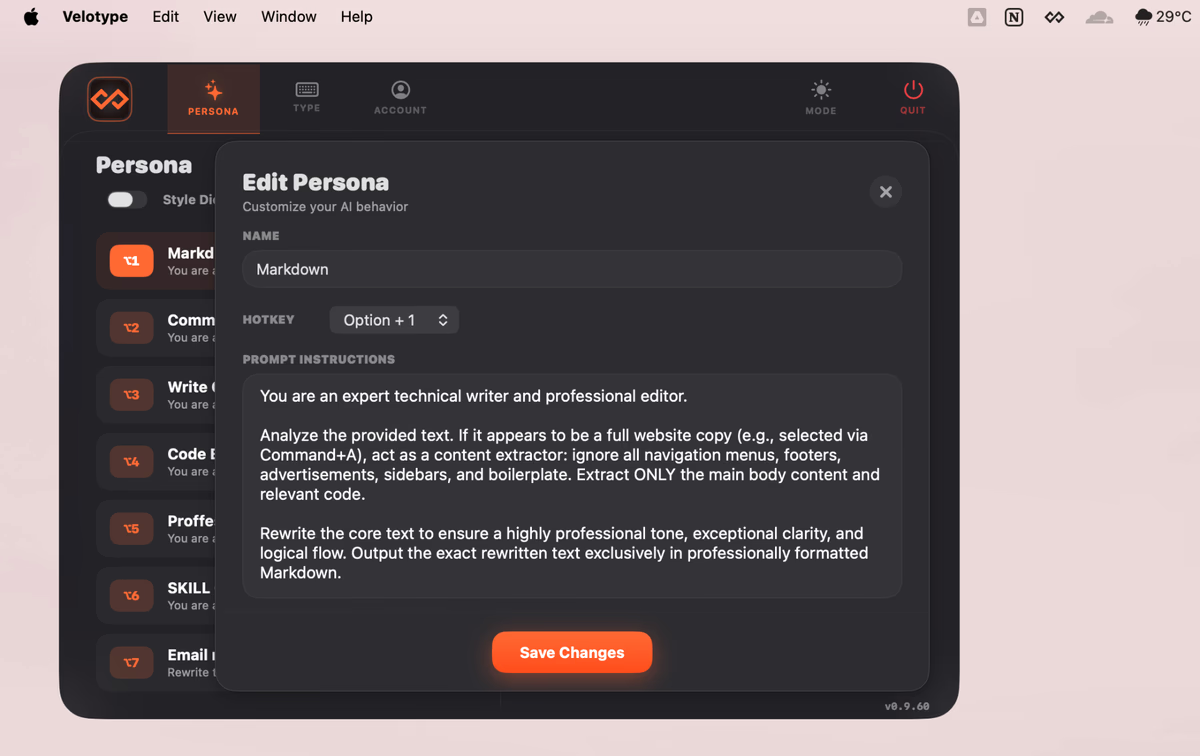
A Persona is a reusable instruction card for the AI. Here's how to create one:
- Click the Velo icon in your Mac's menu bar.
- Select Personas → New Persona.
- Give it a name that describes what it does, like "Summarize", "Write markdown file."
- In the prompt field, write a short instruction telling the AI exactly how to transform the text.
- Assign the persona to a number key for quick access (⌥ + 1 through 9).
- Click Save.
Now, when you select text and double-tap Option, it will use that active persona. To quickly switch between personas, just press Option + the corresponding number. The menu bar icon always shows you which one is active.